
On Windows 10 you can do many customizations to personalize it according to your preference. One such option is to change or replace the icons. Windows 10 comes with many in-built icons that you can apply by knowing their location.
In this article, we will show you where to find icons in Windows 10 so that you can easily access them. The good news is that the location is very similar to Windows 8 and 7, which should make it easy for you to find your way around. Let’s get started.
To fix various Windows 10/11 problems, we recommend Outbyte PC Repair:
This software will repair common computer errors, protect you from file loss, malware damage, hardware failure, and optimise your computer for peak performance. In three simple steps, you can resolve PC issues and remove virus damage:
- Download Outbyte PC Repair Software
- Click Start Scan to detect Windows 10/11 issues that may be causing PC issues.
- Click Repair All to fix issues with your computer's security and performance.
This month, Outbyte has been downloaded by 23,167 readers.
How are Windows 10 icons stored?
Icons are usually available in the .ico file format. However, with Windows 10, things are different. Windows 10 has lots of applications, folders, files, and shortcuts, and many of them have unique icons. So, if Windows had an ICO file for each icon it uses, that would make for a considerable number of icon files.
To fix this, Windows 10 categorize icons and store them in the Dynamic Link Library (DLL) files. The advantage of a DLL file is that it can hold a large number of icons. So when you want to change the icon of a particular type, for example, File Explorer, just browse the DLL file where the file explorer icons are located and choose the suitable icons.
Where is the Windows 10 Icon Location?
As mentioned, Windows icons are categorized into different DLL files based on their types. All these DLL files are located in C:\Windows\System32. Here is the location where different icons are stored:
Default Icons (Imageres.dll)
The icons which are by default applied on the Windows are stored on this location: C:\Windows\System32\imageres.dll. This is the biggest icon library on Windows 10.

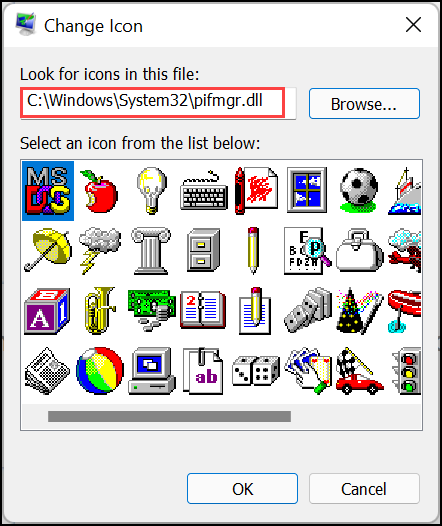
Retro Icons (Pifmgr.dll)
Windows 10 also comes with the icons of the previous Windows version. So, if you want to apply the retro icons to get the feel of Windows XP or Windows 7, navigate to this location when changing the icon: C:\Windows\System32\pifmgr.dll.
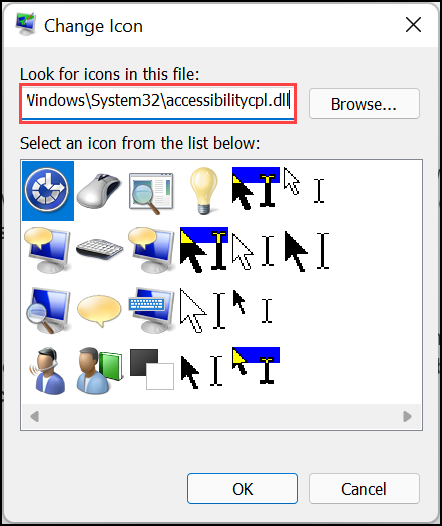
Accessibility Icons (Accessibilitycpl.dll)
On the System32 folder, there is also a set of accessibility icons that consists of icons of people, mouse cursors, magnifying glass, keyboard, and more. To apply one of these icons browse this location: C:\Windows\System32\accessibilitycpl.dll.
Hardware Device Icons (DDORes.dll)
The icons for hardware devices such as speakers, headphones, mice and keyboards, screens, computers, remotes, gaming pads, cameras, printers, and so on are available at this location: C:\Windows\System32\DDORes.dll. With these icons, you can change the default hardware icons on Windows.

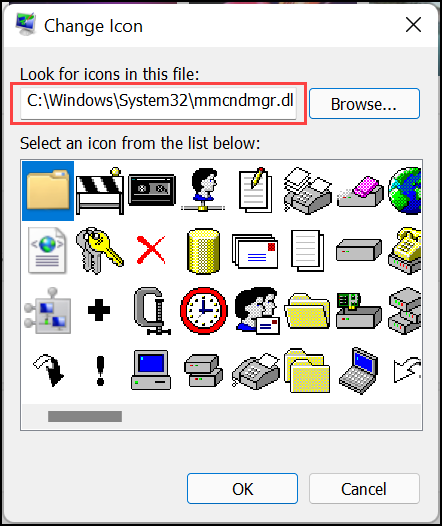
Management Settings Icons (Mmcndmgr.dll)
If you require to change your management settings icon for example networks, folders, authentication, time, computers, and servers, you can access them from this path: C:\Windows\System32\mmcndmgr.dll.
Old Programing Language Icons (Moricons.dll)
Windows 10 also stores the icons of MS-DOS and old programming languages such as Turbo Pascal, FoxPro, and more. These icons will take your system back in time and give it a retro look. To apply these icons navigate to this location: C:\Windows\System32\moricons.dll

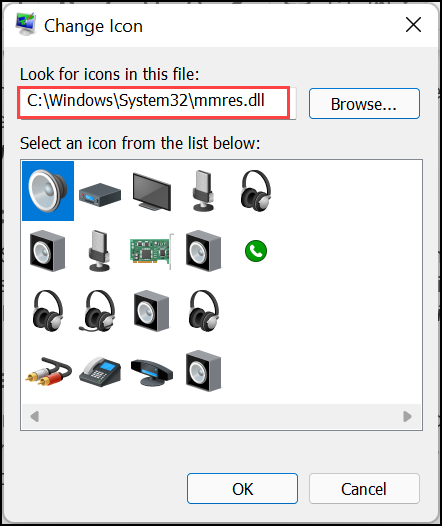
Audio Resource Icons (Mmres.dll)
To give a new look to your Audio resource icons, you can use the audio resource icons present at this location: C:\Windows\System32\mmres.dll. Here you will get icons like speakers, headphones, microphones, and a webcam.
Network Icons (Netshell.dll)
The network connection and peripherals icons like Bluetooth, wireless routers, network adapters, and more can be found at: C:\Windows\System32\netshell.dll.

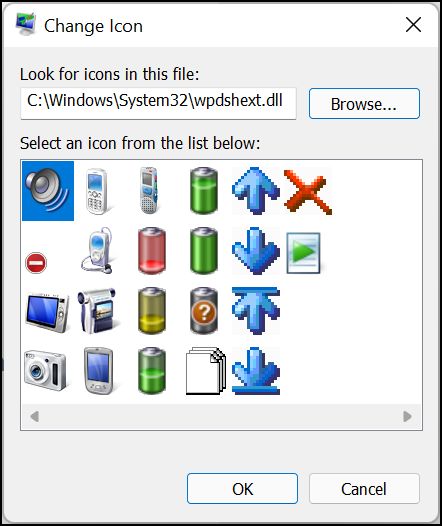
Multimedia Icons (Wpdshext.dll)
If you are bored with the default multimedia icons of your Windows 10 like media devices, music, video files, CD, DVD, and many more, then you can give them a new look by choosing the multimedia icons from the following path: C:\Windows\System32\wpdshext.dll
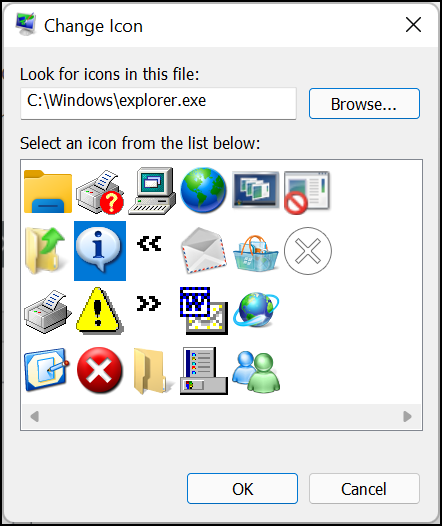
File Explorer Icons (Explorer.exe)
Explorer.exe file contains the icons that are used by File Explorer. From here you can set or change the icons for things like printers, messenger apps, mail, folders, actions, and others. You can find these icons at: C:\Windows\System32\explorer.exe.
How to change Windows 10 Icons?
After knowing the Windows 10 icon location, you can now modify them as per your preference. Here is how to do that.
Change the Desktop Icons
To change the Desktop icons such as Recycle Bin, Network, and others, follow these steps:
- Click on the Start button and select Settings from the list.
- Choose Personalization settings from the list.
- Switch to the Themes tab from the left pane.
- Scroll down and under Related Settings, click on Desktop icon settings.

- Next, select the icon you want to change and click on the Change Icon.

- Select a new icon from the available ones.

Change the Folder Icons
On Windows 10, you can easily change any folder icon. Here are the steps to do that:
- Right-click on the folder whose icon you want to change and select Properties.
- Switch to Customize tab and click on the Change Icon button.

- Select the new icon for your folder from the available options.

Change Desktop Shortcut Icons
Like Folder icons, you can also change the icons of the app’s shortcuts. Follow these instructions:
- Right-click on the shortcut whose icon you want to change and select Properties.
- Under the Shortcut tab, click on the Change icon.

- Select a new icon from the available ones.

Conclusion
So as you can see, the Windows 10 icon location is fixed but they are scattered all over the System32 folder. However, with a little research and exploration, you can find any type of icon that you are looking for to change the look of your system. Just be careful not to delete or rename any essential files while hunting for those desired icons.
The default program icons are usually stored in the C:\Program Files\Windows NT folder. However, this may vary depending on your system settings and the programs that you have installed.
There are a few ways to do this. One way is to right-click on the file or folder and select “Properties.” Then click on the “Customize” tab and select from one of the available icons. Another way is to open File Explorer and navigate to the desired file or folder. Right-click on it and select “Change Icon.” A window will pop up with a list of available icons. Select the one you want and click “OK.”
Yes, you can create your own Windows icon using an icon editor such as Microsoft Paint or Adobe Photoshop. Once you have created the icon, you can save it in the ICO format and then use it on your system.

Peter is an Electrical Engineer whose primary interest is tinkering with his computer. He is passionate about Windows 10 Platform and enjoys writing tips and tutorials about it.