
Microsoft has added in a very useful feature in recent versions of Windows that allows users to run an app in what it calls Compatibility mode. This comes in very handy for Windows 10, in particular.
With this, you have the ability to force an app to use settings from an earlier version of the operating system. This is helpful for older programs, and software that you know ran well in say, Windows 7 or Windows Vista, or even Windows XP.
To fix various Windows 10/11 problems, we recommend Outbyte PC Repair:
This software will repair common computer errors, protect you from file loss, malware damage, hardware failure, and optimise your computer for peak performance. In three simple steps, you can resolve PC issues and remove virus damage:
- Download Outbyte PC Repair Software
- Click Start Scan to detect Windows 10/11 issues that may be causing PC issues.
- Click Repair All to fix issues with your computer's security and performance.
This month, Outbyte has been downloaded by 23,167 readers.
You can also change the display and color settings of an application here in this panel.
To get started, right-click on an app and select Properties.
This can be done from the shortcut of that application, or by browsing to its .exe file in File Explorer.
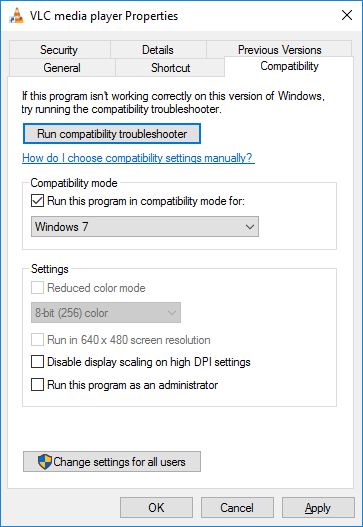
Select the Compatibility tab, and then check the box next to the Run this program in compatibility mode for option.
Now, choose the version of Windows that you want to use for your app’s settings in the dropdown box, from the multiple choices that are provided — from Windows 95 all the way to Windows 8.
Hit Apply to close the window, and then run your application to see if it fixes your issues, or makes the program run better.

